
ワードプレス初心者のカスタマイズ 作業1

テーマを直接変更(WordPress)
ヘッダータイトルの余白調整
ワードプレスのテーマTwentyElevenのヘッダータイトルの余白調整をします。
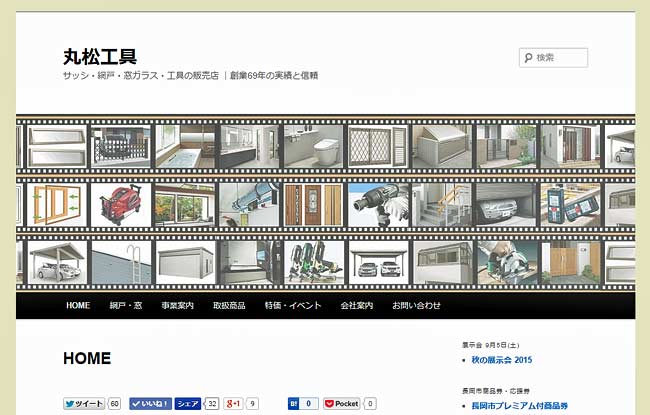
余白が広いので、サイズ調整をします
スタイルシート(style.css)の変更
管理画面『外観』>>『テーマ編集』からスタイルシート(style.css)を開いて下さい。
※スタイルシート(style.css)を変更する前に必ずバックアップしてください
※小テーマを使用している方は、小テーマ側のスタイルシートを編集して下さい
テーマを更新(アップデート)した場合は、テーマに加えたカスタマイズがすべて失われます。テーマを修正する場合、子テーマの利用を検討してください。子テーマを使用すればテーマの変更は確実に保持されます。
変更前
スタイルシート (style.css)の変更前 ※変更する前にバックアップしてください
#branding {
	border-top: 2px solid #bbb;
	padding-bottom: 10px;
	position: relative;
	z-index: 9999;
}
#site-title {
	margin-right: 270px;
	padding: 3.65625em 0 0; /* タイトル周辺の余白調整箇所 */
}
#site-title a {
	color: #111;
	font-size: 30px;
	font-weight: bold;
	line-height: 36px;
	text-decoration: none;
}
#site-title a:hover,
#site-title a:focus,
#site-title a:active {
	color: #1982d1;
}
#site-description {
	color: #7a7a7a;
	font-size: 14px;
	margin: 0 270px 3.65625em 0; /* キャッチフレーズ周辺の余白調整箇所 */
}
#branding img {
	height: auto;
	display: block; /* ヘッダー画像周りの余白の撤去箇所 */
	width: 100%;
}
変更後(スタイルシート (style.css)の直接変更・調整)
#branding {
	border-top: 2px solid #bbb;
	padding-bottom: 10px;
	position: relative;
	z-index: 9999;
}
#site-title {
	margin-right: 270px;
	padding: 0.7em 0 0;  /* タイトル周りの余白の撤去  */
#site-title a {
	color: #111;
	font-size: 30px;
	font-weight: bold;
	line-height: 36px;
	text-decoration: none;
}
#site-title a:hover,
#site-title a:focus,
#site-title a:active {
	color: #1982d1;
}
#site-description {
	color: #7a7a7a;
	font-size: 14px;
	margin: 0 270px 0.5em 0;  /* キャッチフレーズ周りの余白の撤去 */
}
#branding img {
	height: auto;
	margin-bottom: -7px;  /* ヘッダー画像周りの余白の撤去 */
	width: 100%;
}
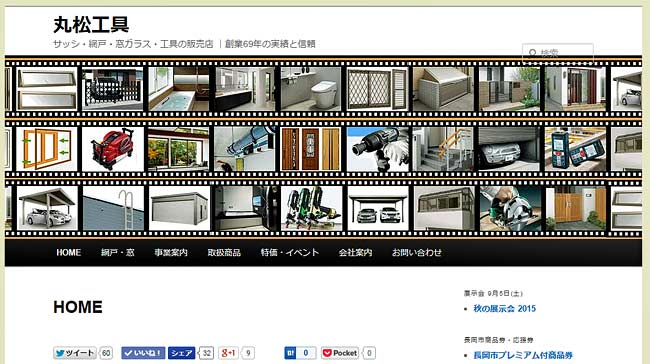
余白がスリムになりサイト表示も多くなりました。
余白調整して検索ボックスの位置がずれたので、WordPress 作業2「▶検索ボックスの位置変更」で修正します。
テーマ更新
新しいバージョンに「テーマを更新」した場合は、テーマに加えたカスタマイズがすべて失われます。
テーマを修正する場合、子テーマの利用をした方がよさそうですが、勉強中なので子テーマのやり方がわかりません。
他のサイトで調べてください。
WordPress 作業カテゴリ
関連記事
 WP ヘッダー 検索ボックスの位置変更 TwentyEleven
 WP 『Proudly powered by WordPress』をCopyright ©に変更 TwentyEleven
WP 固定ページのタイトルを非表示に変更 TwentyEleven
WP メインサイドバーを変更 TwentyEleven
WP メインサイドバーの調整 TwentyEleven
WP 投稿(BLOG)タイトルの変更 TwentyEleven
WP タグに枠をつける TwentyEleven
WP 投稿にサイドバーを表示(プラグイン新規追加方法) TwentyEleven
WP サイト全体の横幅サイズを1000pxから1400pxに変更 TwentyEleven
WP マウスオーバーで画像半透明に変更 TwentyEleven
WP 画像の枠線を消去 TwentyEleven
WP タイトルバーや文字をCSSを使って変更 TwentyEleven
WP 『Proudly powered by WordPress』をCopyright ©に変更 TwentyEleven
WP 固定ページのタイトルを非表示に変更 TwentyEleven
WP メインサイドバーを変更 TwentyEleven
WP メインサイドバーの調整 TwentyEleven
WP 投稿(BLOG)タイトルの変更 TwentyEleven
WP タグに枠をつける TwentyEleven
WP 投稿にサイドバーを表示(プラグイン新規追加方法) TwentyEleven
WP サイト全体の横幅サイズを1000pxから1400pxに変更 TwentyEleven
WP マウスオーバーで画像半透明に変更 TwentyEleven
WP 画像の枠線を消去 TwentyEleven
WP タイトルバーや文字をCSSを使って変更 TwentyEleven